
I’ve tested over 40 Chrome extensions in the past decade running an SEO agency. Most are gimmicks. A handful are genuinely open in my browser every single day.
The problem most digital marketers face isn’t a lack of tools — it’s having too many half-useful ones slowing down their browser while the ones that actually move the needle sit undiscovered in the Chrome Web Store.
I’ve seen agency teams paying hundreds of dollars a month for SEO platforms while missing free extensions that would save them two hours of manual work daily.
This list is different from the usual roundups.
Every extension here has passed a simple test: does it give me information I’d otherwise have to open a separate tool to find? If the answer is yes, it’s on the list. If it’s just a shortcut or a novelty, it’s not.
I’ve organized these 22 extensions into five categories — keyword research, on-page SEO, technical checks, competitor research, and content and productivity — so you can install exactly what’s relevant to your role and skip what isn’t.
Whether you’re a solo consultant or running a team of ten, there’s a stack here worth building.
Let’s get into it.
Quick Comparison: All 22 Extensions at a Glance
| Extension | Category | Pricing | Best For | Skill Level | Rating |
| Keyword Surfer | Keyword & SERP | Free | Search volume in Google SERPs, no login needed | Beginner | ★★★★★ |
| MozBar | Keyword & SERP | Free/Pro | DA/PA for every result on any SERP at a glance | Beginner | ★★★★★ |
| Ahrefs SEO Toolbar | Keyword & SERP | Needs Ahrefs | DR, traffic & backlinks overlaid on SERPs | Intermediate | ★★★★★ |
| Mangools SEO Extension | Keyword & SERP | Needs Mangools | SERP authority & direct KWFinder integration | Beginner | ★★★ |
| Ubersuggest | Keyword & SERP | Free | Keyword difficulty & page age shown on SERPs | Beginner | ★★★★ |
| SEO Meta in 1 Click | On-Page SEO | Free | Complete on-page element audit in one click | Beginner | ★★★★★ |
| META SEO Inspector | On-Page SEO | Free | Structured data & Open Graph error validation | Intermediate | ★★★★ |
| NoFollow | On-Page SEO | Free | Visual nofollow & sponsored link highlighting | Intermediate | ★★★★ |
| Web Vitals | Technical SEO | Free | Real-time LCP, CLS & INP on any page | Intermediate | ★★★★★ |
| Link Redirect Trace | Technical SEO | Free | Full redirect chain with HTTP codes at each hop | Intermediate | ★★★★★ |
| Check My Links | Technical SEO | Free | Broken link detection on any page in < 60 sec | Beginner | ★★★★ |
| Tag Assistant (by Google) | Technical SEO | Free | GA4, Google Ads & GTM tag firing verification | Intermediate | ★★★★★ |
| SimilarWeb | Competitor Research | Free/Paid | Traffic source breakdown for any competitor site | Beginner | ★★★★★ |
| BuiltWith | Competitor Research | Free/Paid | Full tech stack with historical change tracking | Beginner | ★★★★ |
| Wappalyzer | Competitor Research | Free/Paid | Fast, clean technology stack identification | Beginner | ★★★★ |
| SERP Search Simulator | Competitor Research | Free | Localized SERPs by country & device type | Intermediate | ★★★★ |
| Grammarly | Content & Productivity | Free / Pro | Grammar & clarity across every browser text field | Beginner | ★★★★★ |
| Wordtune | Content & Productivity | Free / Pro | AI sentence rewriting for content repurposing | Beginner | ★★★★ |
| Awesome Screenshot | Content & Productivity | Free / Pro | Annotated screenshots & screen recordings | Beginner | ★★★★★ |
| GoFullPage | Content & Productivity | Free / Pro | One-click full-page PNG or PDF captures | Beginner | ★★★★ |
| ColorZilla | Content & Productivity | Free | Exact hex/RGB color from any element on any page | Beginner | ★★★★ |
| Loom | Content & Productivity | Free / Business | Screen recording with instant shareable link | Beginner | ★★★★★ |
List of Chrome Extension for Digital Marketers
#1 Keyword Surfer
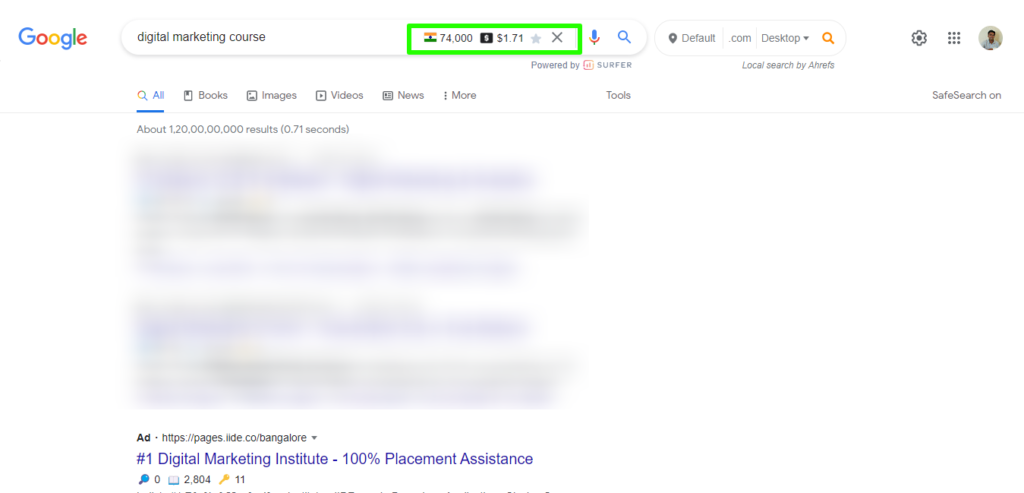
Keyword Surfer is the extension I recommend to every digital marketer who tells me they can’t justify paying for a keyword tool yet.
It’s completely free, requires no account, and shows you search volume, CPC, and related keyword suggestions directly inside Google search results — without opening a single separate tab.
The moment you type a query into Google, Keyword Surfer populates a panel on the right side of the SERP with keyword ideas, their monthly volumes, and cost-per-click data.
It also displays the estimated monthly traffic for every organic result on the page, which means you can look at a competitor’s ranking URL and immediately get a traffic ballpark — something that used to require logging into Ahrefs or SEMrush.
What makes it genuinely useful:
- Displays search volume and CPC for your query without leaving Google
- Shows traffic estimates next to every ranking page on the SERP
- Suggests related keywords in a side panel as you search
- Highlights keyword density on any page you open, directly in the content
- Completely free with no usage limits or login required
Best for: Freelancers, junior SEOs, and content writers who need quick volume data while researching topics. Also useful as a sanity check alongside a paid tool — I use it constantly to verify volumes without opening another browser tab.
One thing to know: Keyword Surfer pulls from Surfer SEO’s data, which is solid for English-language markets but thinner for regional or non-English queries. If you’re doing keyword research for local markets in India, Kerala, or other South Asian regions, treat the numbers as directional rather than exact.
#2 Moz Bar
MozBar is one of the oldest SEO Chrome extensions and still one of the most useful. It sits as a persistent toolbar at the top of your browser and shows you Domain Authority (DA) and Page Authority (PA) for every site and page you visit — including every result on a Google SERP.
What this means practically: you can scan an entire page of search results in about ten seconds and know exactly how authoritative your competition is. If a keyword shows page-one results dominated by DA 80+ sites, you know it’s a tough fight. If you spot a DA 20 site ranking on page one, that’s a gap worth investigating.
What makes it genuinely useful:
- Shows DA and PA for every page and every SERP result simultaneously
- Highlights followed vs nofollowed links on any page (useful for link prospecting)
- Shows page title, meta description, and on-page elements in the toolbar
- Lets you export SERP data to CSV for analysis — useful for agency reporting
- The free tier is functional; Moz Pro unlocks on-page keyword analysis and full metrics
Best for: SEO consultants, agency account managers, and anyone doing competitive research or link prospecting at scale. If you assess domain authority as part of your daily workflow, MozBar eliminates the need to paste URLs into a DA checker repeatedly.
Free vs Pro: The free version shows DA, PA, and link metrics. Moz Pro adds keyword difficulty scores, on-page analysis, and page optimization data. For most day-to-day browsing needs, free is enough.
If you’re evaluating whether Moz Pro is worth upgrading to, our full Moz review covers the platform in detail — including where it outperforms competitors and where it falls short for agencies. We’ve also covered the best SEO reporting tools for agencies if you’re looking for a broader stack comparison.
#3 Ahrefs SEO Toolbar
If you’re already paying for Ahrefs, not using their Chrome extension is leaving significant value on the table.
The Ahrefs SEO Toolbar overlays real data — Domain Rating, URL Rating, organic traffic estimates, number of backlinks, and referring domains — directly onto every page you visit and every SERP result you see.
The difference between MozBar and the Ahrefs toolbar comes down to data depth and accuracy.
Ahrefs has one of the largest backlink indexes in the industry, and their traffic estimates tend to be closer to reality than most alternatives.
When I’m doing a serious competitor analysis — not a quick sanity check — I rely on Ahrefs toolbar data over DA/PA.
What makes it genuinely useful:
- Displays DR, UR, backlinks, referring domains, and organic traffic per page on SERPs
- Shows on-page SEO data (title, meta description, word count, structured data) for any page you open
- Highlights broken links on any page, color-coded for quick scanning
- Works across Google, Bing, and DuckDuckGo SERPs
- Requires an active Ahrefs subscription (any plan qualifies)
Best for: Agencies and consultants already on Ahrefs who want their data surfaced while browsing — without context-switching to the dashboard. Also excellent for quick link prospecting: visit any blog post, see its DR and backlink count immediately, and decide in seconds whether it’s worth pitching.
One thing to know: The toolbar uses Ahrefs’ data, which is updated frequently but not real-time. Traffic estimates reflect Ahrefs’ crawl data, not Google Analytics. They’re directional but accurate enough for competitive decision-making.
If you’re comparing Ahrefs against other platforms before committing, our Ahrefs review covers the full tool honestly, including limitations. We’ve also done a direct Ahrefs vs SEMrush comparison and a roundup of Ahrefs alternatives if you’re looking for a more budget-friendly option that still gives you toolbar-level data while browsing.
#4 Mangools SEO Extension
Mangools is a budget-friendly SEO suite — KWFinder, SERPChecker, SERPWatcher, LinkMiner, and SiteProfiler — and their Chrome extension brings a useful slice of that data into your browser.
If you’re on a Mangools subscription and not using the extension, you’re doing extra work for no reason.
The extension displays a Citation Flow and Trust Flow-equivalent metric called “SERP Authority” alongside estimated monthly traffic for every result on a Google SERP.
It also shows keyword search volume for the query you’ve just searched — similar to Keyword Surfer but pulling from Mangools’ own database.
What makes it genuinely useful:
- Shows SERP Authority (their DA equivalent) for every page on a SERP
- Displays monthly search volume for your current Google query
- Provides a traffic estimate for each ranking URL
- Opens directly into KWFinder or SERPChecker with one click for deeper research
- Clean, uncluttered UI that doesn’t overwhelm the SERP layout
Best for: Freelancers and small agency teams already using Mangools as their primary SEO suite. It’s not worth paying for Mangools just for the extension, but if you’re a KWFinder user doing regular keyword research, the extension makes that workflow significantly faster.
Free vs Paid: The extension requires a Mangools subscription. There’s no standalone free version. Mangools plans are considerably cheaper than Ahrefs or SEMrush, making this a solid option for budget-conscious consultants who still need reliable keyword and authority data.
If you’re evaluating Mangools as a lower-cost alternative to the major SEO platforms, our guide on SEMrush alternatives includes Mangools in the comparison — covering where it holds up and where it shows its budget-tier limitations.
#5 Ubersuggest
Ubersuggest is Neil Patel’s SEO tool, and their Chrome extension is one of the most accessible free options available.
It activates directly inside Google and shows keyword difficulty, monthly search volume, CPC, paid difficulty, and age of the top-ranking pages — all without leaving the SERP.
The standout feature for content marketers is seeing how old the top-ranking pages are.
If the first-page results for a keyword are 4–6 years old and haven’t been updated, that’s often a signal that fresh, well-optimized content can break in. Ubersuggest surfaces this data right on the SERP — no separate tool required.
What makes it genuinely useful:
- Shows keyword difficulty, volume, CPC, and paid competition in Google SERPs
- Displays the age of each ranking page — useful for identifying stale content opportunities
- Highlights estimated monthly visits next to each SERP result
- Free tier is generous and doesn’t require a paid Ubersuggest subscription for basic data
- Works across Google, YouTube, and Amazon searches
Best for: Content marketers, bloggers, and SEOs looking for quick SERP-level keyword signals. Particularly useful when identifying content refresh opportunities and deciding whether a keyword is realistically winnable for a newer domain.
One thing to know: Ubersuggest’s keyword database is smaller than Ahrefs or SEMrush, and volume estimates can differ significantly for long-tail queries. Use it for directional research and quick opportunity-spotting rather than as your sole source of keyword data before committing resources to a content piece.
If you’re building out a keyword strategy and relying on free tools to get started, our breakdown of long-tail keyword research tools covers Ubersuggest alongside paid alternatives — and explains exactly when free data is good enough and when you need to invest in a full platform. If you’re specifically evaluating whether to upgrade to a paid SEO suite, our SEMrush alternatives guide covers the full budget-friendly landscape.
#6 SEO Meta in 1 Click
The name is literal.
One click, and you get every on-page SEO element for any page you’re visiting laid out in a clean panel — no digging through browser DevTools, no opening a separate audit tool, no waiting for a crawler to run. For quick on-page checks, nothing comes close to the speed of this extension.
What it surfaces in that single click: the page title and its character count, meta description and its character count, canonical URL, robots directives, H1 through H6 heading structure, image count with alt tag status, internal and external link counts, and the page’s indexability status.
That’s the entire foundation of an on-page audit delivered in about two seconds.
I use this constantly during client calls when someone asks “why isn’t this page ranking?” — I pull it up on their page and can see within seconds whether they have a missing H1, a duplicate title tag, or images with no alt text.
It replaces what used to be a five-minute manual inspection every single time.
What makes it genuinely useful:
- Surfaces title tag, meta description, canonicals, robots meta, and heading structure instantly
- Shows character counts for title and description — flags immediately if they’re too long or too short
- Displays total image count and how many are missing alt text
- Lists internal and external links with counts, and lets you click through to see each one
- Completely free with no account or subscription required
- Works on any page including password-protected staging environments
Best for: SEO consultants, content managers, and agency teams doing rapid on-page audits across multiple pages.
Particularly useful during site reviews, content audits, or when onboarding a new client and doing a quick page-level health check before pulling a full crawler report.
A workflow that saves real time: When auditing a site with 50–100 pages, use this extension to scan pages manually at ten times the speed of a standard crawler.
Start with your highest-traffic pages, flag anything that looks wrong — missing descriptions, duplicate H1s, broken canonical chains — and build your audit list before running Screaming Frog.
You’ll walk into the full crawl already knowing where the problems are.
If you’re doing a full on-page audit and want a systematic approach beyond individual page checks, our website audit checklist covers the complete process — from technical foundations through to content and conversion elements. And if you’re evaluating whether your current SEO tool handles on-page analysis well enough, our Search Atlas review and SE Ranking review both cover their on-page audit modules in depth
#7 META SEO Inspector
SEO Meta in 1 Click tells you what’s on the page.
META SEO Inspector tells you what’s wrong with it.
The distinction matters — this extension goes a layer deeper and is built specifically to surface errors, warnings, and validation issues rather than just displaying raw metadata.
Where SEO Meta in 1 Click shows you your Open Graph tags, META SEO Inspector tells you if they’re malformed, missing required properties, or conflicting with each other.
Where SEO Meta in 1 Click shows your structured data exists, META SEO Inspector shows you whether it validates — and flags exactly which fields are broken and why.
For anyone doing technical content audits or troubleshooting why a page isn’t generating rich results in Google Search, this is the extension you actually need.
What makes it genuinely useful:
- Validates structured data (JSON-LD, Microdata, RDFa) and shows specific errors, not just presence
- Audits Open Graph and Twitter Card metadata for completeness and correctness
- Checks hreflang tags for international SEO — flags conflicts and missing reciprocals
- Shows all meta tags on the page in a structured, categorized view
- Highlights issues with color-coded warnings (red errors, yellow warnings, green passes)
- Free with no account required
Best for: Technical SEOs, developers building structured data implementations, and agency teams troubleshooting rich result eligibility.
If a client’s FAQ schema isn’t generating an FAQ snippet in Google, or a product page isn’t showing star ratings in SERPs, this is the first place to look.
Real example of where this saves hours: A page can have valid-looking JSON-LD structured data that simply won’t trigger a rich result because a required property is missing or incorrectly typed.
Google’s Rich Results Test tool tells you this — but it requires you to paste a URL and wait. META SEO Inspector shows you the error the moment you land on the page, which makes debugging structured data implementations dramatically faster when you’re working across multiple pages.
Pair it with: Use META SEO Inspector for validation and error-checking, and SEO Meta in 1 Click for a complete element overview.
They complement each other — install both and use them together rather than choosing one.
If you’re working on improving your pages’ eligibility for rich results in Google Search, our guide on what is generative engine optimization covers how structured data plays into both traditional rich results and AI-driven search features — relevant context as Google’s SERP formats continue evolving.
If you’re auditing a full site’s technical foundation, our website audit checklist covers structured data validation as part of the broader technical SEO process.
#8 NoFollow
NoFollow does one thing, does it flawlessly, and has been doing it for years.
It highlights every nofollow, sponsored, and UGC link on any webpage using colored outlines — so you can see at a glance which links on a page pass link equity and which ones don’t.
By default, browsers show you no visual difference between a followed link and a nofollow link.
They look identical.
Without an extension like this, identifying them requires inspecting the page source or DevTools for each link individually — which is time-consuming and easy to miss at scale.
NoFollow makes the distinction instant and visual.
What makes it genuinely useful:
- Outlines nofollow links in red, so they’re immediately visible on any page
- Distinguishes between rel=”nofollow”, rel=”sponsored”, and rel=”ugc” attributes
- Works on every page you visit with zero configuration — install and it’s on
- Useful for both link building (prospecting) and link auditing (checking your own pages)
- Completely free, lightweight, and doesn’t slow your browser
Best for: Link builders, digital PR teams, and SEO consultants who need to quickly assess whether a link opportunity is worth pursuing, or verify whether links they’ve built are actually followed.
Also useful for content managers checking whether their internal linking structure is correctly set up — sometimes nofollow attributes get applied unintentionally by CMS plugins.
Two specific workflows where this is essential:
Link prospecting: When evaluating a guest post opportunity or editorial placement, the first question is whether the links in that content are followed.
Visit the target site, activate NoFollow, and you’ll see instantly whether their existing outbound links pass equity or are blanket-nofollowed.
If every external link on the site is red, the placement probably isn’t worth the effort from an SEO perspective.
Internal link auditing: Some WordPress plugins and themes — particularly certain page builders — add nofollow attributes to internal links by accident.
Visit key pages on your site with NoFollow active and scan for any red-outlined internal links.
If you find them, that’s link equity leaking between your own pages and a quick fix with significant SEO impact.
If you’re building a link acquisition strategy for your site and want to understand how followed vs nofollowed links affect your authority, our SE Ranking honest review covers their backlink analysis module in detail — including how it categorizes link types across your profile.
For a broader look at link building as part of a full SEO budget, our post on SEO budget allocation factors breaks down where link building sits relative to technical and content investment.
#9 Web Vitals
Web Vitals is built by Google, measures exactly what Google measures, and is free.
There is no reason not to have it installed.
Every page you visit, it sits quietly in your toolbar showing a green, amber, or red status — and one click opens a real-time panel with your Core Web Vitals scores for that exact page, on your exact device and connection.
The three metrics it tracks are the same three Google uses as ranking signals:
Largest Contentful Paint (LCP), which measures how fast the main content loads;
Cumulative Layout Shift (CLS), which measures visual stability — whether elements jump around as the page loads; and
Interaction to Next Paint (INP), which replaced First Input Delay in 2024 and measures how quickly the page responds to user interactions like clicks and taps.
What makes this extension more useful than running a PageSpeed Insights test is that it shows you real-time field data rather than a simulated lab result.
You’re seeing how the page actually performs in your browser right now — not an approximation.
When you make a change to a page and want to verify the impact immediately, this is the tool you open.
What makes it genuinely useful:
- Shows LCP, CLS, and INP scores in real time for any page you visit
- Color-coded immediately — green (good), amber (needs improvement), red (poor) — no interpretation required
- Built and maintained by Google’s Chrome team, so the metrics match exactly what Google Search Console reports
- Lets you identify CWV issues on competitor pages as well as your own
- Free, lightweight, zero configuration required after install
Best for: Technical SEOs, developers, and agency teams responsible for page performance.
Particularly useful during site builds and post-launch audits — you can walk through every key page on a site and flag CWV failures in minutes rather than running individual PageSpeed tests for each URL.
One workflow worth building: Any time you publish a new page or make significant changes to an existing one — new hero image, new page builder section, updated fonts — open it with Web Vitals active before pushing it live or immediately after.
Catching a CLS issue caused by a late-loading image or an LCP regression from an uncompressed hero takes thirty seconds with this extension.
Finding it three months later in a Search Console performance drop takes considerably longer to diagnose and fix.
What to check first if you’re failing: LCP failures are almost always caused by large unoptimized hero images, render-blocking resources, or slow server response times.
CLS failures typically come from images without defined dimensions, dynamically injected content above the fold, or late-loading fonts causing text reflow.
INP issues usually point to heavy JavaScript execution blocking the main thread.
#10 Link Redirect Trace
Every SEO knows that a 301 redirect passes link equity — but what most people don’t check is whether the redirect chain between the original URL and the final destination is clean enough to actually pass it.
A single redirect is fine.
A chain of three or four redirects between an inbound link and your page is a measurable loss of ranking power, and without a tool like Link Redirect Trace, you’d never know it was happening.
Link Redirect Trace follows every hop in a redirect chain, shows you the HTTP status code at each step, flags whether link equity is being passed or lost at each hop, and tells you if there’s a redirect loop — all inside your browser without opening a separate crawler or writing a single line of code.
It also shows you additional technical signals at each URL in the chain: whether the page is using HTTPS, whether there’s a canonical tag and what it points to, whether the robots meta tag is blocking indexing, and whether the page resolves to www or non-www.
That’s a complete picture of the redirect path in one panel.
What makes it genuinely useful:
- Maps the full redirect chain for any URL with HTTP status codes at every hop
- Flags where link equity is lost — particularly through 302s (temporary redirects) instead of 301s
- Identifies redirect loops that cause pages to return errors
- Shows canonical, HTTPS status, robots meta, and www/non-www resolution at each step
- Highlights chains that are too long (3+ hops) and likely causing crawl inefficiency
- Free with no account required
Best for: Technical SEOs, site migration specialists, and agency teams managing sites that have gone through multiple redesigns, domain changes, or CMS migrations.
Redirect chain issues are one of the most common sources of unexplained ranking drops after a migration — this extension lets you diagnose them at the URL level without running a full crawl.
Where this pays for itself immediately: After any site migration, spend an hour walking through your highest-value pages and your most linked-to URLs with Link Redirect Trace active.
Check that every old URL resolves to the correct new URL in a single 301 hop. If you find chains going old URL → intermediate URL → new URL, that’s unnecessary equity dilution you can fix in your server config or .htaccess file in minutes.
The same check applies any time a client switches domains, moves from HTTP to HTTPS, or restructures their URL hierarchy.
A nuance worth knowing: A 302 redirect — temporary — does not reliably pass link equity the way a 301 does.
If you find a 302 in a chain where you expected a 301, that’s a flag worth raising immediately.
Link Redirect Trace color-codes these differently so you can spot them without reading each status code manually.
#11 Check My Links
Check My Links does something simple that would otherwise take a disproportionate amount of manual time: it crawls every link on any webpage you’re visiting and highlights broken ones in red, working ones in green, and redirects in yellow — in under a minute, without you touching a single line of code.
The reason this matters for SEO is threefold.
Broken internal links waste crawl budget and create dead ends for both users and search engines.
Broken outbound links are a technical quality signal — Google’s quality guidelines explicitly mention linking to inaccessible pages as a negative quality indicator.
And from a link building perspective, finding broken external links on high-authority pages in your niche is one of the most reliable outreach angles available — you’re offering a genuine fix, not just asking for a favor.
What makes it genuinely useful:
- Scans every link on a page and returns a color-coded status in under 60 seconds
- Highlights valid links in green, broken links (4xx, 5xx) in red, and redirects in yellow
- Displays the HTTP status code for each link so you know exactly what type of error you’re dealing with
- Lets you copy all broken links to clipboard for reporting or outreach prospecting
- Works on any page — your own site, competitor sites, resource pages, and link roundups
- Free with no account required
Best for: Content managers maintaining large blog archives, SEOs doing broken link building outreach, and agency teams running site audits for clients.
Particularly useful for sites that have been running for several years and have accumulated outbound links that have since gone dead — a common and frequently ignored issue on older content.
Two workflows that generate immediate value:
Internal broken link auditing: Visit your most important pages — your highest-traffic posts, your cornerstone content, your service pages — and run Check My Links on each one.
Any red links pointing to internal pages are a user experience and crawlability issue to fix immediately.
Any red links pointing to external resources should either be updated to a live equivalent or removed.
Broken link building prospecting: Find resource pages or link roundups in your niche — the kind of pages that list useful tools, guides, and external links relevant to your industry.
Run Check My Links on them. When you find broken external links, identify what the dead page was originally about using the Wayback Machine, create or find equivalent content on your own site, and reach out to the page owner offering your live page as a replacement.
This works because you’re solving a real problem for them rather than making a cold request.
#12 Tag Assistant (by Google)
Tracking setup is the foundation everything else sits on.
If your Google Analytics tag isn’t firing correctly, your data is wrong.
If your Google Tag Manager container is loaded but your conversion tracking tags aren’t triggering, you’re making decisions based on incomplete information.
Tag Assistant tells you immediately, on any page you visit, whether your tags are installed correctly and firing as expected — or not.
Built by Google, Tag Assistant detects and validates Google Analytics 4, Universal Analytics (GA3), Google Ads conversion tracking, Google Tag Manager, and Google Optimize tags.
It records a session of your browsing and shows you exactly which tags fired on which pages, in what order, and with what data — which makes debugging complex GTM setups significantly faster than guessing and checking in GTM’s preview mode alone.
What makes it genuinely useful:
- Detects GA4, Google Ads, GTM, and other Google tags on any page automatically
- Records a browsing session and maps every tag that fired across every page you visited
- Shows the exact data being sent with each tag — event parameters, user properties, conversion values
- Flags configuration errors, duplicate tags, and tags firing out of sequence
- Validates that GTM is loaded and that the tags inside it are triggering correctly
- Free, built by Google, works with any site regardless of platform
Best for: Digital marketers, paid media managers, and SEO consultants who regularly audit client tracking setups.
Essential during new client onboarding — before you trust any performance data, you verify the tracking is clean.
Also critical when launching new GTM tags or GA4 events and needing to confirm they fire before pushing live.
Where this saves you from expensive mistakes: Misattributed conversions are one of the most common and most damaging problems in digital marketing.
A duplicate GA tag firing on every page inflates session counts and skews bounce rates.
A conversion tag that fires on page load instead of on form submission counts every visitor as a conversion.
A GTM container that loads after the user bounces misses every fast exit. Tag Assistant catches all of these during a five-minute check — before they contaminate weeks of data.
The recording feature is underused: Most people install Tag Assistant and use it as a static checker.
The more powerful workflow is using the Tag Assistant Recordings feature — start a recording, browse through your key user journeys (homepage → service page → contact form → thank you page), and then review the full session tag-by-tag.
This shows you not just whether tags are installed but whether they’re firing at the right moments across the entire funnel.
#13 SimilarWeb
Most competitive research tools require you to already know what you’re looking for.
SimilarWeb tells you things you didn’t know to ask. Visit any website — a competitor, a potential partner, a site you stumbled across in a SERP — and their extension gives you an immediate traffic overview: estimated monthly visits, bounce rate, average session duration, pages per visit, traffic source breakdown, and top referring sites.
All of it without logging into a dashboard or running a report.
For agency work specifically, SimilarWeb is often the first thing I open when a new prospect comes in.
Before the discovery call, I visit their site and their top three competitors with SimilarWeb active.
Within five minutes I have a realistic picture of traffic volumes, where that traffic is coming from, and which channels each competitor is leaning on. That context changes the quality of every conversation that follows.
What makes it genuinely useful:
- Shows estimated monthly visits, bounce rate, session duration, and pages per visit for any site
- Breaks down traffic by channel — organic, direct, referral, social, paid, email
- Shows top referring domains and top destination sites (where visitors go after leaving)
- Displays top organic and paid keywords driving traffic to any competitor
- Shows geographic distribution of traffic — useful for identifying markets a competitor is strong in
- Free tier gives meaningful data; paid plans unlock deeper historical data and full keyword lists
Best for: Agency new business teams, SEO strategists, and content marketers who need competitive context fast.
Also useful for identifying partnership opportunities — if a site sends significant referral traffic to a competitor in your niche, that’s a referral relationship worth understanding and potentially replicating.
One nuance on the data: SimilarWeb’s estimates are modeled from panel data and web crawls, not actual analytics access.
For large sites with significant traffic, the estimates are generally reliable directional signals.
For smaller sites — under roughly 50,000 monthly visits — treat the numbers as rough indicators rather than precise figures.
The traffic source breakdown tends to be more reliable than the absolute visit counts at lower traffic volumes.
A workflow that surfaces real opportunities: Visit the top five organic competitors for your most important keywords with SimilarWeb active.
Look at their traffic source breakdown — specifically the ratio between organic and direct traffic.
A competitor with 70% direct traffic has a strong brand that people seek out deliberately.
One with 80% organic is heavily SEO-dependent. The SEO-dependent competitors are more vulnerable to being displaced by better content; the brand-strong ones require a different strategy entirely.
#14 BuiltWith
BuiltWith answers a question that comes up constantly in agency and SaaS sales contexts: what technology is this website actually running? Visit any site and the extension instantly surfaces their CMS, analytics platform, email marketing tool, payment processor, CDN, advertising pixels, A/B testing tools, live chat software, and dozens of other technology signals — all from a single toolbar click.
The intelligence value of this goes well beyond curiosity.
If you’re doing competitive research and you see a competitor recently added a Hotjar tag, they’re actively working on conversion rate optimization.
If they added a Klaviyo pixel, they’re building or scaling an email list.
If they switched from WordPress to Webflow, a redesign or repositioning is likely underway.
BuiltWith turns a competitor’s tech stack into a window into their current strategic priorities.
What makes it genuinely useful:
- Reveals CMS, hosting, CDN, analytics, advertising, and marketing technology for any site
- Shows when technologies were added or removed — useful for tracking competitor movements over time
- Identifies which analytics and tracking pixels a site is running — useful for understanding their attribution setup
- Useful for sales prospecting: identify sites running a competitor’s tool and target them specifically
- Free tier shows a useful subset of technologies; paid plans unlock full historical data and bulk lookups
Best for: Agency business development teams, SaaS sales teams, and SEO consultants doing deep competitive audits.
Also genuinely useful for technical SEOs who need to understand a site’s infrastructure before diagnosing performance or crawlability issues.
Practical use case for agency prospecting: If you specialize in working with e-commerce brands on Shopify, BuiltWith lets you identify whether a prospect is actually on Shopify before your first call — and see what apps they’re running, which tells you what problems they’re already trying to solve.
Walking into a discovery call knowing a prospect is running five different SEO apps but not a proper keyword research tool signals exactly where the conversation should go.
#15 Wappalyzer
Wappalyzer covers the same fundamental ground as BuiltWith — identifying the technology stack behind any website — but with a cleaner interface, faster load time, and a free tier that’s more accessible for day-to-day browsing. Where BuiltWith provides depth and historical tracking, Wappalyzer prioritizes speed and readability.
The extension displays detected technologies organized into clear categories directly in a popup: CMS, ecommerce platform, JavaScript frameworks, web server, CDN, analytics, marketing automation, payment systems, and more. For a quick check on any site you’re visiting, the information is there in about two seconds with no friction.
What makes it genuinely useful:
- Clean, categorized display of technology stack for any site — faster to scan than BuiltWith’s output
- Covers CMS, frameworks, analytics, ecommerce, marketing automation, CDN, and hosting
- Free tier is genuinely useful without requiring a paid subscription for most browsing needs
- Available as a browser extension and also as a standalone SaaS for bulk technology lookups
- Regularly updated database keeps pace with new and emerging platforms
Best for: Freelancers, junior SEOs, and developers who want fast tech stack identification without the depth and complexity of BuiltWith’s full output. If you’re doing quick prospect research or just want to know what CMS a site is running before a client meeting, Wappalyzer gets you there faster.
BuiltWith vs Wappalyzer — which to install: Install both, but use them differently. Wappalyzer is your everyday quick check. BuiltWith is what you open when you need historical data, when you’re doing a thorough competitive audit, or when you want to understand technology adoption trends over time. They’re complementary rather than redundant — the overlap in core functionality doesn’t make either one unnecessary.
#16 SERP Search Simulator
Rankings are not universal. The position your page holds in Google search results varies by country, by device, by whether the user is logged in, by their search history, and by dozens of other personalization signals. When you search from your own browser on your own device with your own Google account, you are seeing a personalized SERP that nobody else sees in exactly the same way. SERP Search Simulator removes that personalization and lets you see results as a clean, unbiased user from any location and device combination you choose.
This is particularly important for agencies managing clients in multiple markets, for businesses targeting US audiences from outside the US, and for anyone verifying local rankings without physically being in that location. Rather than using a VPN — which introduces its own variables — SERP Search Simulator routes your query through Google’s infrastructure for the specified location and device type, giving you a clean SERP that reflects what a genuine user in that location would see.
What makes it genuinely useful:
- Simulates Google searches from any country without a VPN or physical location change
- Lets you switch between desktop and mobile SERPs to verify device-specific ranking differences
- Removes personalization signals so you see organic results uninfluenced by your search history
- Useful for verifying local pack results, featured snippet presence, and SERP feature distribution by market
- Lets you check whether a page ranks differently for the same keyword across different countries
- Free to use with no account required
Best for: International SEO specialists, agencies managing multi-market campaigns, and any marketer targeting an audience in a different country from where they’re working. Also useful for verifying mobile vs desktop ranking differences on pages that may have mobile usability issues affecting their mobile rankings specifically.
A scenario where this is essential: You’re based in India managing an SEO campaign targeting the US market. Your client asks whether their page is ranking for a specific keyword in the US. Searching from your browser in India gives you an India-localized SERP — not what a US user in Chicago or New York is seeing. SERP Search Simulator lets you pull the clean US SERP instantly, verify the actual ranking, check what SERP features are present (featured snippet, People Also Ask, local pack), and report accurately without needing a US-based team member to check manually.
#17 Grammarly
Every piece of content you publish is a direct representation of your expertise. A misspelled word in a blog post headline, an awkward sentence in a client proposal, or a grammatical error in an email to a prospect undermines credibility in a way that’s disproportionate to the size of the mistake. Grammarly catches these things before they go out — across every text field in your browser, not just in Google Docs.
That last point is what makes the Chrome extension more valuable than the standalone app. Grammarly works in your WordPress editor, your HubSpot email composer, your LinkedIn post drafts, your Notion pages, your Gmail, your Slack messages, and your CMS — everywhere you write, not just in dedicated writing environments. The free tier handles grammar, spelling, and basic punctuation. Premium adds style suggestions, tone detection, clarity improvements, and engagement scoring.
What makes it genuinely useful:
- Real-time grammar, spelling, and punctuation corrections across every browser text field
- Tone detection — useful for ensuring client communications land with the right register
- Clarity and conciseness suggestions that push you toward tighter, more direct writing
- Plagiarism checker in Premium — useful for verifying content before publishing
- Works in virtually every web-based writing environment without configuration
- Suggestions appear inline as you type; corrections are one click to accept
Best for: Content writers, agency teams, and anyone producing written content at volume across multiple platforms. Particularly useful for non-native English speakers producing content for English-language audiences — Grammarly’s suggestions improve naturalness and fluency beyond basic error correction.
Free vs Premium — is it worth upgrading: The free tier catches the errors that matter most — typos, basic grammar mistakes, comma issues. Premium’s value depends on your output volume and writing confidence. If you’re producing multiple pieces of long-form content weekly for a professional audience, the style and clarity suggestions in Premium pay for themselves in reduced editing time. If you write occasionally and have a strong editorial eye, free is likely sufficient.
One thing to be aware of: Grammarly’s suggestions are algorithmically generated and occasionally incorrect — particularly for technical content, brand-specific terminology, or intentionally informal writing styles. Treat every suggestion as a recommendation to evaluate, not an automatic correction to accept. The tool improves your writing; it doesn’t replace editorial judgment.
#18 Wordtune
Where Grammarly fixes errors, Wordtune reimagines sentences. It’s an AI-powered rewriting tool that takes any sentence you highlight and offers multiple alternative phrasings — shorter, longer, more formal, more casual, or simply restructured to say the same thing more clearly. For content marketers working at volume, it’s the fastest way to break out of repetitive phrasing patterns and get past the specific friction of knowing what you want to say but not how to say it.
The extension integrates directly into Google Docs, Gmail, LinkedIn, and most web-based editors. Highlight a sentence, click the Wordtune icon, and you get six to eight rewrite options instantly. You pick the one that fits, or you use it as a prompt to write your own improved version. It’s less about replacing your writing and more about giving you raw material to react to when you’re stuck.
What makes it genuinely useful:
- Rewrites individual sentences with multiple tonal and structural alternatives in seconds
- Offers “Shorten” and “Expand” modes for adjusting content density without rewriting manually
- Works in Google Docs, Gmail, LinkedIn, Twitter, and most web-based writing environments
- Particularly useful for reformatting the same content for different channels — turning a blog paragraph into a LinkedIn post phrasing, for example
- Free tier offers a limited number of rewrites daily; Premium removes the cap
Best for: Content writers dealing with large output volumes, social media managers repurposing content across platforms, and agency teams writing in a client’s brand voice who need to vary phrasing without drifting from the established tone. Also useful for non-native English speakers who know the substance of what they want to say but want native-sounding alternatives to choose from.
Where it fits alongside Grammarly: Install both. Use Grammarly for error correction and clarity checks throughout your writing process. Use Wordtune specifically when you’re stuck on a sentence, when you’re repurposing content for a new format, or when you’re editing a draft and want to break repetitive sentence structures. They serve different moments in the writing process and don’t overlap enough to make either one redundant.
#19 Awesome Screenshot
Client reporting in SEO and digital marketing involves a significant amount of visual documentation — annotated screenshots of SERP positions, marked-up competitor pages, recorded walkthroughs of recommendations, and captured data from tools that don’t have native export options. Awesome Screenshot handles all of it from a single extension.
The core capability is full-page screenshot capture with a built-in annotation layer: you can draw arrows, add text boxes, highlight sections, blur sensitive data like client revenue figures or personal information, and add numbered callouts before sharing or downloading. Beyond static screenshots, it supports screen recording — capturing video of your browser session with optional webcam overlay — which makes it practical for creating tutorial content, client deliverables, and async feedback on designs or content drafts.
What makes it genuinely useful:
- Captures visible area, selected region, or full scrolling page screenshots in one click
- Annotation toolkit: arrows, text, rectangles, highlights, blur tool for sensitive data
- Screen and webcam recording with instant shareable link — no upload required
- Saves directly to device, cloud, or generates a shareable URL
- Numbered callout markers for annotating multiple elements in sequence — useful for feedback documents
- Free tier is functional for most use cases; Pro unlocks longer recordings and additional storage
Best for: Agency teams producing client-facing deliverables, SEO consultants documenting audit findings, and content marketers capturing tool data for reports or presentations. The blur tool alone makes this more useful than a native screenshot shortcut — being able to redact client data before sharing a screenshot removes a constant friction point in agency workflows.
A specific use case worth highlighting: When documenting SEO recommendations for a client who isn’t technical, written explanations of issues are often insufficient. A screenshot of their page with a red arrow pointing to a missing H1 and a text annotation saying “this page has no primary heading — Google cannot determine the main topic” communicates the same information in three seconds rather than three paragraphs. Awesome Screenshot makes that documentation workflow fast enough to do it systematically rather than selectively.
#20 GoFullPage
GoFullPage does one thing: captures a complete full-page screenshot of any webpage in a single click, with no scrolling, no stitching artifacts, and no configuration. If Awesome Screenshot’s annotation features are more than you need and you just want a clean, reliable full-page capture every time, GoFullPage is the faster, simpler choice.
The output is a pixel-perfect capture of the entire page — including content below the fold — exported as a PNG or PDF. The PDF export is particularly useful for preserving long-form content pages, landing pages, or competitor pages exactly as they appeared at a specific point in time, without the rendering inconsistencies that sometimes appear in browser-native PDF exports.
What makes it genuinely useful:
- One-click full-page screenshot with no manual scrolling or region selection
- Clean output with no stitching artifacts — the full page renders as a single image
- Exports as PNG for images or PDF for documents — the PDF option is underrated and widely useful
- Works on most websites including those with lazy-loaded content (with occasional exceptions)
- Lightweight and fast — doesn’t noticeably impact browser performance
- Free tier covers most use cases; Pro adds cloud storage and history
Best for: Anyone who regularly needs clean full-page captures for reporting, archiving, or reference — content managers saving competitor landing pages, SEOs documenting before/after states of optimized pages, and designers referencing layout structures. The PDF export specifically is useful for creating documentation libraries of competitor pages or archiving your own site’s pages at key milestones.
GoFullPage vs Awesome Screenshot — when to use which: If you need to annotate, share via link, or record screen activity, use Awesome Screenshot. If you just need a clean, fast, full-page capture with no extras, use GoFullPage. Install both — they’re both lightweight and serve genuinely different moments in a workflow.
#21 ColorZilla
ColorZilla is a precision tool for a specific but frequently occurring problem: identifying the exact color being used anywhere on any webpage. Click the eyedropper icon, hover over any element on the page — a button, a background, a logo, a text color — and ColorZilla returns the precise hex code, RGB value, and HSL value for that exact pixel.
For digital marketers this comes up constantly in practice: matching brand colors when building assets in Canva or Figma without access to a brand guide, reverse-engineering a competitor’s color palette to understand their visual positioning, ensuring consistency across a client’s web presence when colors have drifted between pages, or simply copying a color from a design reference without guessing. ColorZilla makes what would otherwise be a multi-step process involving browser DevTools into a two-second action.
What makes it genuinely useful:
- Precise hex, RGB, and HSL color values for any pixel on any webpage
- Color history panel stores recently sampled colors — useful when sampling multiple colors across a page
- Gradient generator built into the extension for quick CSS gradient creation
- CSS color sampling from computed styles — see exactly what color an element actually renders as, accounting for opacity and layering
- Completely free with no account or subscription required
Best for: Digital marketers doing design work without dedicated design tool access, agency teams ensuring brand color consistency across client assets, and developers needing to match visual elements precisely without parsing CSS manually. Also useful for content creators building slide decks, social graphics, or email templates who need to match colors from a reference page.
One workflow that saves disproportionate time: When onboarding a new client without a formal brand guide, spend five minutes on their existing website with ColorZilla open and sample their primary brand color, secondary color, background color, and accent color. Save these as a palette in Figma or note them in your project file. Every asset you produce from that point forward is color-consistent without ever having to ask the client for their brand colors or guess from a logo file.
#22 Loom
Written instructions have a ceiling. There is a level of complexity — a multi-step process, a nuanced feedback point on a design, a technical walkthrough of an SEO recommendation — where paragraphs of text are simply less effective than watching someone do the thing while explaining it. Loom removes the friction from creating that video. Record your screen, your face, or both, stop recording, and instantly have a shareable link — no uploading, no compression, no sending large files.
For agency teams, Loom fundamentally changes the economics of client communication and internal knowledge sharing. A five-minute Loom video replacing a twenty-email thread saves time on both sides and communicates with more clarity than text ever could. An onboarding Loom showing a new team member how to run a monthly reporting process takes thirty minutes to record once and replaces thirty minutes of repeated live training indefinitely.
What makes it genuinely useful:
- Records screen only, camera only, or both simultaneously — you choose per recording
- Instant shareable link generated the moment you stop recording — no upload wait
- Viewer comments on the video timeline — specific feedback tied to a specific moment
- Automatic transcription of the audio — the video is searchable and accessible
- Viewer analytics show who watched, how much they watched, and when they stopped
- Free tier gives 25 videos with five-minute recording limit; Business plan removes both caps
Best for: Agency account managers delivering client reports and recommendations, SEO consultants walking clients through audit findings, team leads creating internal process documentation, and anyone who communicates complex information repeatedly to different people. The viewer analytics feature is specifically valuable in agency contexts — you can see whether a client actually watched your strategy video before a meeting, which changes how you frame the conversation.
Three specific use cases with immediate return:
Client audit delivery: Instead of sending a 40-page PDF audit report and waiting for the client to read it, send a Loom walking through the top ten findings. Clients engage with video at dramatically higher rates than written reports, and a recorded walkthrough means they can rewatch sections they missed rather than scheduling a follow-up call.
Team SOPs: Any recurring process your team runs — monthly reporting, new client onboarding, site audit setup — record it once in Loom. New team members watch the video instead of getting live training. The process is documented and consistent without anyone having to write a word.
Async feedback on content drafts: When reviewing a piece of content or a page design, recording a Loom while reading through it gives the writer or designer specific, timestamped feedback they can reference while making revisions — faster to deliver and easier to act on than written comments.
Wrapping Up
I sincerely think that these plugins will make your day to day life as a Digital Marketer, PPC specialist, SEO Specialist or whatever you like to call yourself.
I will be updating this list on a more frequent basis to bring more useful information to you guys.
Do comment below and let me know any new tool you guys feel is a great addition to this list.
Are Chrome extensions safe to use for digital marketing?
Most reputable Chrome extensions from established developers are safe, but it’s important to check permissions before installing.
Extensions that request access to “all website data” should be from trusted sources only.
Stick to extensions with a large user base, regular updates, and transparent privacy policies.
Avoid installing too many at once — bloated Chrome slows down your browser and can affect page load testing accuracy.
Do Chrome extensions slow down the browser?
Yes, they can — especially if you have many running simultaneously.
Extensions like Web Vitals and Page Analytics are lightweight, but tools that continuously scan pages (like SimilarWeb) consume more memory.
A good practice is to disable extensions you don’t use daily and only enable them when needed.
Chrome’s built-in task manager (Shift + Esc) lets you see which extensions are using the most memory.
What is the best free Chrome extension for SEO?
Keyword Surfer is one of the strongest free SEO extensions — it shows search volume, CPC, and related keywords directly in Google search results without requiring a paid subscription.
SEO Meta in 1 Click is another excellent free option for quick on-page audits.
Both are actively maintained and widely used by SEO professionals.
Can I use Chrome extensions for competitor research?
Absolutely.
SimilarWeb gives you a traffic overview of any site you visit, including traffic sources and top referring pages.
BuiltWith reveals what technology stack a competitor uses.
For PPC competitor research, tools like Keyword Surfer show what keywords are driving paid traffic to any domain you visit.
Are there Chrome extensions specifically for content marketing?
Yes. Grammarly helps with writing quality across every platform.
Clearscope and Surfer SEO both have Chrome extensions for real-time content optimization.
Buzzsumo’s extension shows social share counts on any article, which is useful for identifying high-performing content in your niche.
What Chrome extensions do professional SEO agencies use?
Agencies typically rely on a stack that covers on-page auditing (SEO Meta in 1 Click, MozBar), technical checks (Web Vitals, Lighthouse), competitor research (SimilarWeb, BuiltWith), and reporting (Awesome Screenshot for documentation).
The combination of free and freemium tools in this article covers most of what an agency team needs day-to-day.
How many Chrome extensions should a digital marketer have installed?
Quality over quantity.
Ideally, keep 8–12 actively installed and group them by purpose.
Having 30+ extensions is a common mistake — it slows Chrome significantly and creates security surface area.
Use Chrome’s extension groups or a profile switcher to keep SEO extensions separate from general productivity tools.
Is there a Chrome extension that replaces a full SEO tool like SEMrush?
No single extension replaces a full SEO suite.
Extensions give you quick, surface-level data while you browse — they don’t replace the depth of keyword research databases, backlink analysis, site auditing, or rank tracking that tools like SEMrush, Ahrefs, or SE Ranking provide.
Think of extensions as your on-the-go quick checks and paid tools as your deep-dive analysis environment.
Which Chrome extensions work best for local SEO?
For local SEO, the most useful extensions are GMB Everywhere (Google Business Profile insights), BrightLocal’s local search results checker, and SimilarWeb for analyzing local competitor traffic.
Web Vitals is also critical since page speed is a ranking factor for local search.
Checking how your pages render on mobile via Chrome DevTools (built-in) is equally important.
Do these Chrome extensions work on browsers other than Chrome?
Most of these extensions are also available on Chromium-based browsers like Microsoft Edge, Brave, and Arc since they share the Chrome Web Store.
However, they are not available on Firefox or Safari. If your team uses multiple browsers, check each extension’s availability individually — some developers release Firefox add-on equivalents separately.
I sincerely think that these plugins will make your day to day life as a Digital Marketer, PPC specialist, SEO Specialist or whatever you like to call yourself.